Obsidian can't run code blocks. It colors them in Reading view and stops there. The usual fix is two community plugins: Code Styler to make the blocks look right and Execute Code to run them. Code Styler's last release came out in February 2024, Execute Code's in March 2025. I wanted both jobs in one plugin that still gets updates, so I built CodeSuite.
Below: what Obsidian does on its own, how the two setups compare, and a small note you can copy and run.
What Obsidian does on its own
Write a fenced block with a language name and Obsidian highlights it with Prism. Its formatting help page adds that Source mode and Live Preview don't use Prism and "may render syntax highlighting differently". So the colors change depending on whether you're reading or editing. There's no Run button and no output, and a value like $goal_pace in your text stays exactly that.
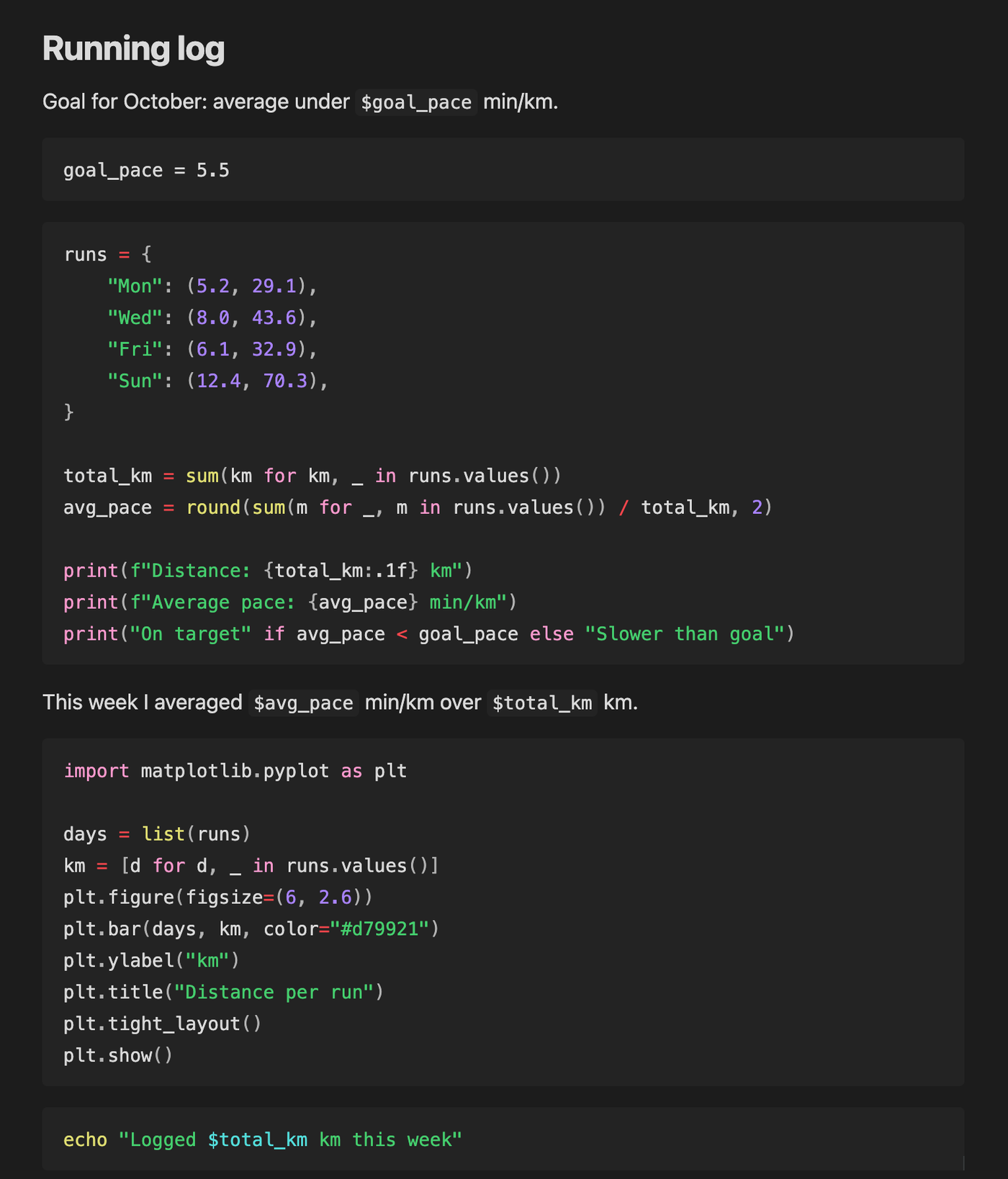
That's fine for snippets you only read. It's not enough if the note is where you work things out.
The usual setup: two plugins
Code Styler styles code blocks in editing and reading mode: titles, line numbers, highlighted lines and colors. Execute Code adds a Run button and runs the block with the interpreters on your computer, in about 28 languages. Together they're the standard answer in forum threads, with roughly 243,000 and 167,000 downloads.
Both still work for a lot of people. But neither has shipped anything in a long time:
- Code Styler: last release 1.1.7, on 23 February 2024. The last commit is from 27 January 2025, and 110 issues are open.
- Execute Code: last release 2.1.2, on 1 March 2025. The last commit, a README edit, is from 2 August 2025, and 163 issues are open.
What CodeSuite does instead
CodeSuite does both jobs and adds the things I kept missing:
- Highlighting with Shiki, which uses the same TextMate grammars and themes as VS Code. 65+ themes, or import any VS Code theme. The colors are the same in Reading view, Live Preview and Source mode.
- Running code in 18 languages with the interpreters on your machine. Output streams in while the code runs, and
input()gets an input box. - Shared variables. Blocks in a note share state, and simple values pass between languages: set a number in Python, read it in Bash.
- Values in your text. Write
`$avg_pace`in a sentence and it shows the result after the run. - Plots from Matplotlib and Plotly render under the block.
- Jupyter
.ipynbimport and export, plus HTML and PDF export with the outputs included.
The README covers every feature, and the variables guide explains how state moves between blocks.
Side by side
| Obsidian alone | Code Styler + Execute Code | CodeSuite | |
|---|---|---|---|
| Plugins to install | None | Two | One |
| Highlighting | Prism in Reading view, different in the editor | Obsidian's colors, plus titles, line numbers and line highlights | Shiki, 65+ themes, same in every view |
| Running code | No | About 28 languages; output shows when the run ends | 18 languages; output streams live |
| Shared state | No | Notebook mode for Python and JavaScript | Python, JS, Bash and Zsh; values cross languages |
| Results in your text | No | No | $name anywhere in the note |
| Plots | No | Python, R, Octave | Python (Matplotlib, Plotly), R, MATLAB |
Jupyter .ipynb | No | No | Import and export |
| Export with output | No outputs to include | PDF, with experimental persistent output | HTML and PDF |
| On mobile | Highlighting | Code Styler only | Highlighting, no running |
| Last release | Part of Obsidian | February 2024 and March 2025 | 1.24.2, October 2026 |
Set it up
- In Obsidian, open Settings → Community plugins → Browse, search for "Code Suite", then install and enable it. It's also on the community plugin page. If you use Code Styler and Execute Code, turn them off first so only one plugin handles your code blocks.
- Make sure Python is installed. Apps opened from the Dock don't always see the same
PATHas your terminal. If Run can't find Python, set the full interpreter path, for example a virtual environment'sbin/python. The configuration guide lists every setting. - For plots, install Matplotlib into that same interpreter:
pip install matplotlib.
A small runnable note
Here's a running log. Paste it into a new note:
Goal for October: average under `$goal_pace` min/km.

```vars
goal_pace = 5.5
```

```python title="weekly_stats.py"
runs = {
    "Mon": (5.2, 29.1),
    "Wed": (8.0, 43.6),
    "Fri": (6.1, 32.9),
    "Sun": (12.4, 70.3),
}

total_km = sum(km for km, _ in runs.values())
avg_pace = round(sum(m for _, m in runs.values()) / total_km, 2)

print(f"Distance: {total_km:.1f} km")
print(f"Average pace: {avg_pace} min/km")
print("On target" if avg_pace < goal_pace else "Slower than goal")
```

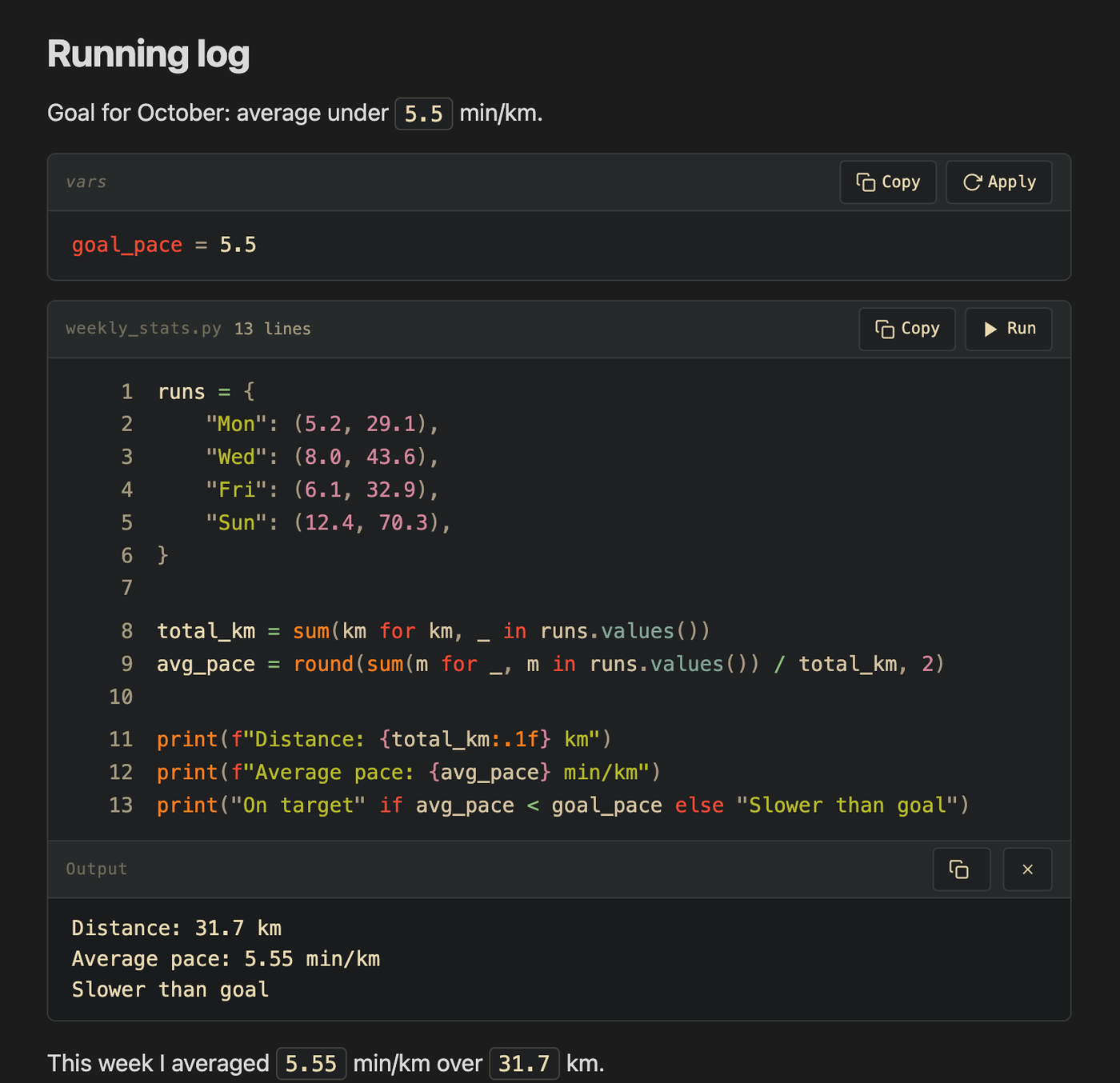
This week I averaged `$avg_pace` min/km over `$total_km` km.
The vars block sets a value for the whole note. The Python block reads it, does the math and prints the result underneath. After the run, $avg_pace and $total_km in the sentence fill in with the real numbers.
Now add two more blocks:
```python title="chart.py"
import matplotlib.pyplot as plt

days = list(runs)
km = [d for d, _ in runs.values()]
plt.figure(figsize=(6, 2.6))
plt.bar(days, km, color="#d79921")
plt.ylabel("km")
plt.title("Distance per run")
plt.tight_layout()
plt.show()
```

```bash
echo "Logged $total_km km this week"
```
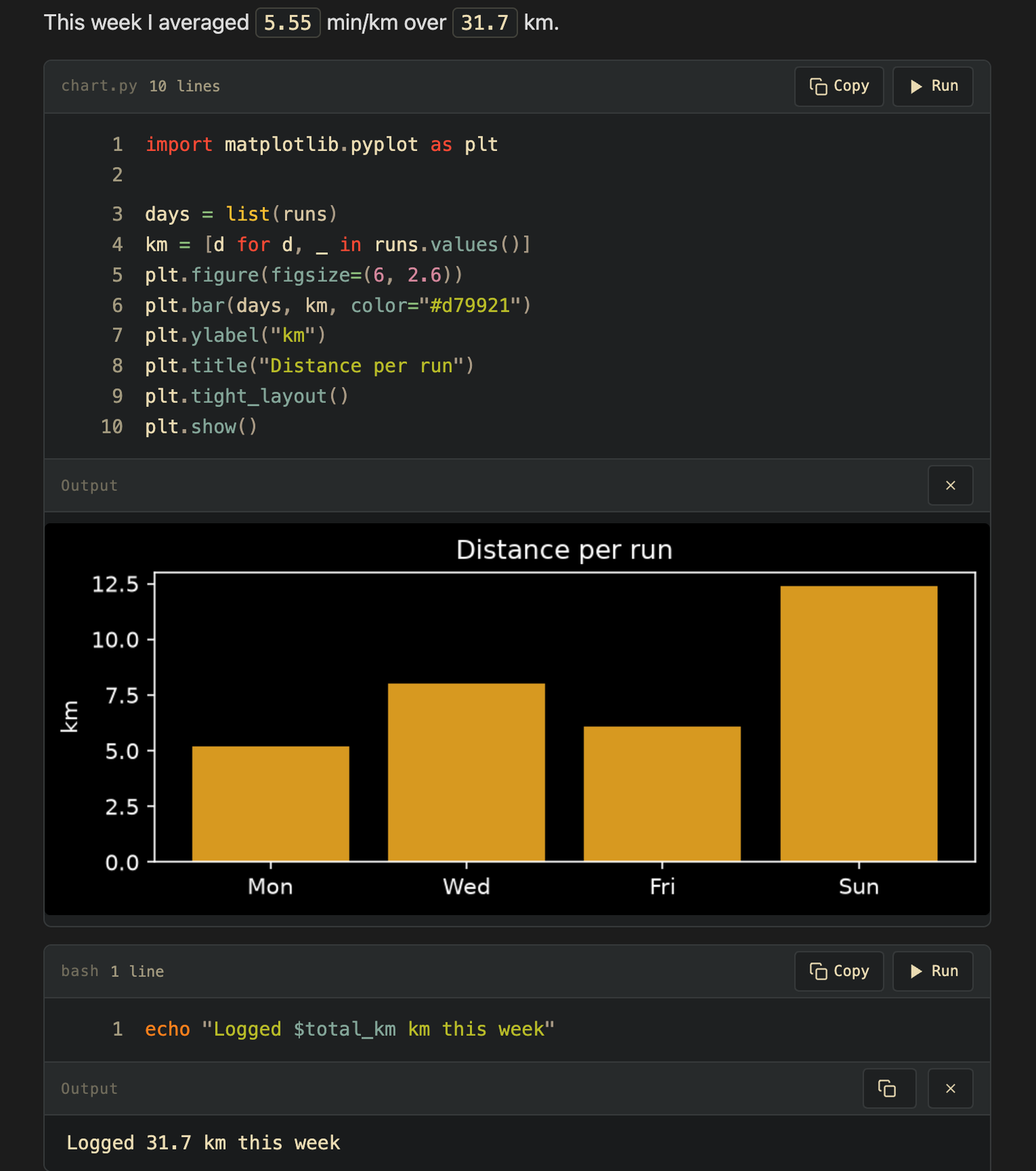
The chart block reuses runs from the block above, and the plot shows up under it. The Bash block reads total_km, which Python set. That cross-language part is what I wanted most when I started building this.
The note is still a plain .md file. Open it without the plugin and you get the code back, as in the first screenshot.
When another plugin fits better
- You need Java, Rust, Kotlin or Haskell. Execute Code runs them and CodeSuite doesn't.
- You want to run code on your phone. CodeSuite only runs code on desktop. Code Emitter runs Python in the app on Android and iOS, though its last release was in December 2024.
- You only want nicer-looking blocks. Codeblock Customizer had a release in April 2026 and doesn't run anything.
CodeSuite has its own limits. You install Python and its packages yourself, and it's much newer and smaller than Execute Code.
One safety note
Run executes code with your user account, and CodeSuite doesn't ask for confirmation first. Only run notes you wrote yourself or got from someone you trust, the same way you'd treat a script you downloaded.